 Shop now, pay later in 4 easy installments

Epson EcoTank printers have become incredibly popular for home users, crafters, photographers and small businesses thanks to their excellent print quality and low running costs.
But if you've ever printed a photo that looked dull, blurry or not quite as vibrant as it did on your screen, you're not alone.
The good news is that, in most cases, your printer isn't the problem. A few simple changes can dramatically improve your results.
Here are my top tips for getting the best from your Epson EcoTank printer.
1. Use the right paper
This is by far the biggest factor affecting print quality.
Many people print photos on standard copy paper, which absorbs ink into the paper fibres. This often results in colours looking muted, blacks appearing grey, and fine detail being lost.
Quality photo paper is specially coated to hold the ink closer to the surface, producing brighter colours, sharper images and much better contrast.
If you're printing photographs, greeting cards, photo magnets or products for customers, choosing the right paper will make a noticeable difference.
2. Match your print settings to the paper
Your printer settings should match the paper you're using.
If you're printing on glossy photo paper but leave the printer set to "Plain Paper", the printer won't apply the correct amount of ink, and the results can look disappointing.
When printing on photo paper, choose an appropriate media type such as:
- Premium Glossy Photo Paper
- Glossy Photo Paper
- Photo Paper
The exact wording varies slightly between Epson printer models, but selecting a photo paper setting allows the printer to produce the best possible result.
3. Print at the highest quality when it matters
For everyday documents, standard quality is perfectly adequate.
For photographs or products you're selling, switch to High or Best Quality in the printer settings.
Printing may take a little longer, but you'll usually notice:
- Sharper detail
- Smoother colour gradients
- Better colour saturation
- Cleaner fine lines
For important prints, the extra time is well worth it.
4. Use genuine Epson inks
Your EcoTank printer is designed to work with Epson's own inks.
While compatible inks can sometimes reduce costs, they may produce different colours, slower drying times or reduced longevity.
If colour accuracy is important, genuine Epson inks generally provide the most consistent results.
5. Keep your print heads healthy
If you don't print regularly, ink can begin to dry in the print head nozzles.
To help prevent this:
- Print something every week or two.
- Run a nozzle check if colours look incorrect or lines appear in your prints.
- Only perform a head cleaning when necessary, as it uses ink.
A little routine maintenance can keep your printer performing at its best.
6. Let prints dry properly
Although modern photo papers dry quickly, freshly printed pages can still be susceptible to smudging if handled immediately.
Allow your prints a few moments to dry before stacking, trimming or placing them into packaging.
This is especially important for projects like photo magnets, greeting cards and printed gifts.
7. Keep your printer clean
Dust and paper fibres can affect print quality over time.
Regularly cleaning the paper feed area and following Epson's maintenance recommendations helps keep prints looking their best.
If you notice marks or roller lines on your prints, checking the paper path and performing routine maintenance may resolve the issue.
8. Use high-resolution images
Even the best printer can't improve a low-quality image.
Whenever possible, print from the original photo rather than screenshots or heavily compressed images.
Higher-resolution files produce sharper, cleaner prints with better detail.
9. Choose the right paper weight and finish
Not every project needs the same type of paper.
For example:
- 115gsm Glossy is a great all-round choice for everyday photo printing.
- 120gsm Double-Sided Glossy is ideal for double-sided projects such as inserts and photo magnets.
- 140gsm Double-Sided Glossy provides a thicker, more premium feel while remaining flexible.
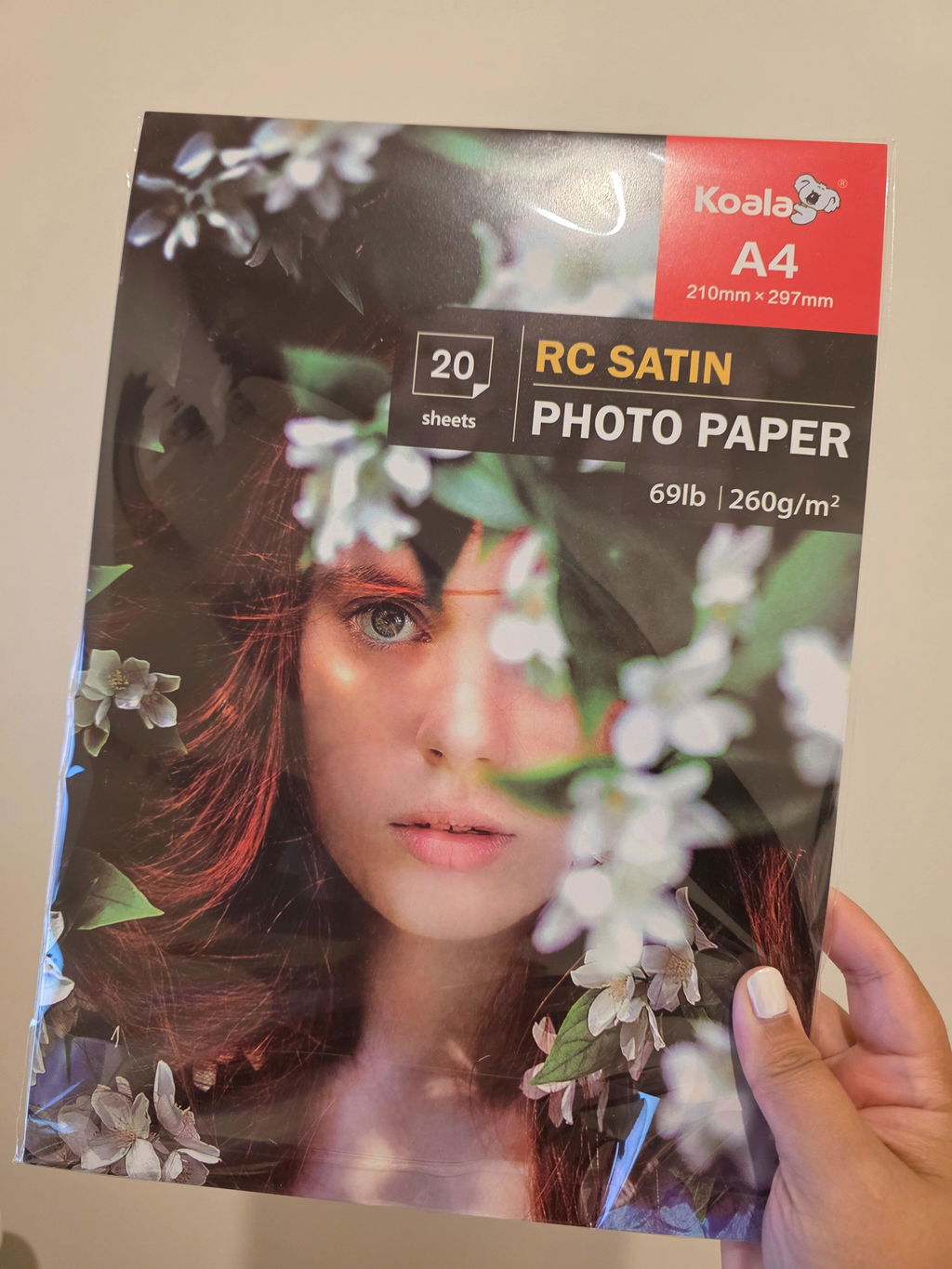
- 260gsm Satin RC offers a professional-quality finish with excellent durability and reduced glare.
Choosing the right paper for your project can make just as much difference as choosing the right printer.
10. Don't be afraid to experiment
Every printer, ink, paper and project is a little different.
One of the best ways to improve your results is to experiment with different paper finishes, print quality settings and colour adjustments.
After a little testing, you'll quickly discover the combination that works best for your printer and the type of printing you do most often.
Final thoughts
Epson EcoTank printers are capable of producing beautiful, vibrant prints, but getting the best results is about more than simply pressing "Print".
Using quality photo paper, selecting the correct print settings, maintaining your printer and printing from high-resolution images can dramatically improve your results.
Whether you're printing family photos, creating personalised gifts or running a small business, a few small adjustments can make a surprisingly big difference.
If you're looking for quality inkjet photo paper for your Epson EcoTank printer, explore the Koala Photo Paper range at Create Print Love. With options including glossy, double-sided glossy and professional Satin RC finishes, there's a paper to suit almost every project.
Related Articles:
- 7 reasons your photo prints look dull (and how to fix them)
- Copy paper vs Glossy photo paper: is there really a difference?
- Understanding photo paper: 115gsm glossy vs 120gsm double-sided glossy vs 260gsm satin. Which should you choose?
- Genuine vs Compatible ink for inkjet and EcoTank printers
- Why your printer looks fine on nozzle check but prints wrong